Free Packing Slip Template (PDF)
Download a free packing slip template in US Letter or A4 PDF format, then print and complete it by hand for accurate, price-free shipments.
Last updated: 2026-10-21
PackingSlip.net provides free blank packing slip PDFs in US Letter and A4. Download without an account or payment, print the form, and fill it by hand. For a typed document, use the online generator instead of editing the blank PDF.
Print and write: choose a blank PDF below. Type online and download: open the packing slip generator for a completed document.
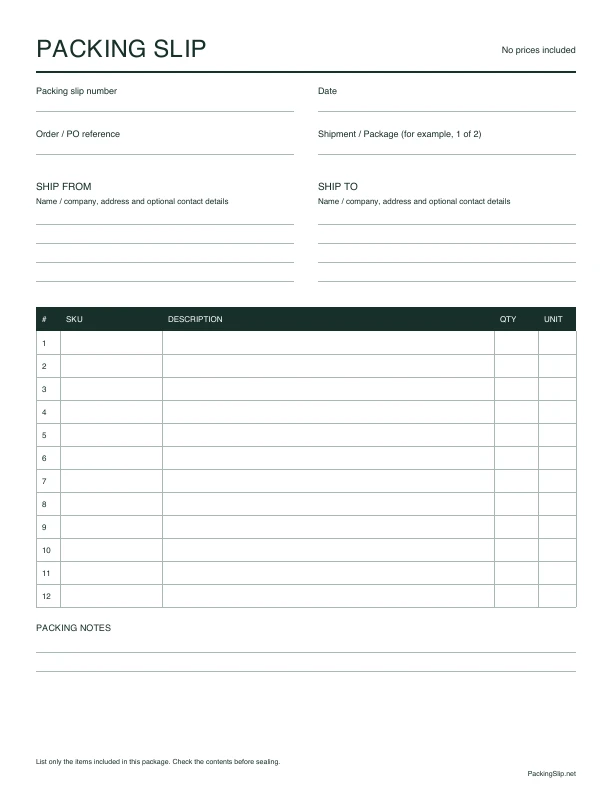
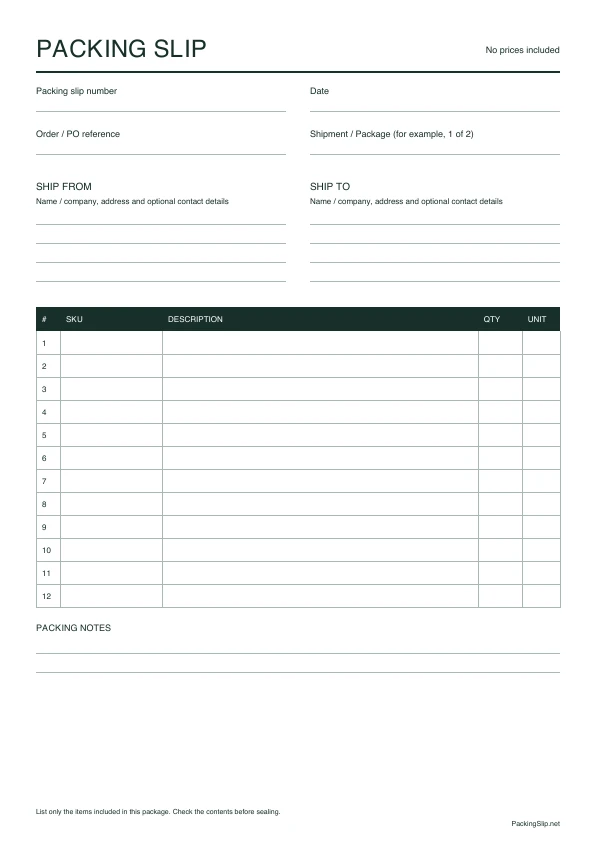
This free packing slip template is a practical blank form for a shipment you are preparing now. Print one copy, write the shipment details clearly, review the item count against the box, and place the completed sheet with the order. The PDFs are static documents designed for handwriting. They are not interactive fillable PDFs and are not Word or Excel files.
See a completed packing slip
Download a completed US Letter sample PDF or the A4 sample PDF before entering your order. Both show the sender, recipient, three items and packed quantities, using fictional details. They contain no prices or payment totals.
For multiple orders, see the Shopify CSV worked example, including a downloadable file and its two-order combined PDF. Importing a CSV requires sign-in; downloading these samples does not.
Choose US Letter or A4 before printing
Use the US Letter PDF when your printer and paper are set to 8.5 × 11 inches. Letter is the normal choice for most printers in the United States. Use the A4 PDF when the printer is loaded with 210 × 297 mm paper, a common default outside the United States.
Choose the file that matches the paper physically loaded in the printer. A printer can shrink an A4 page to fit Letter paper, or the reverse, but automatic scaling may make handwriting areas smaller and move borders closer to the edge. Matching the PDF to the paper gives you more predictable spacing.
Prepare the order before you fill the form
Gather the order record, the recipient's delivery details, and the products that are physically in front of you. Finish picking before writing final quantities. If an item is unavailable or moved to another box, record the contents of this package rather than the original order total.
Use dark ink that scans and photocopies cleanly. Write names, references, and SKUs in block letters when another person will verify the package. Make product descriptions understandable outside your internal catalog.
Complete the sender and recipient sections
Start with the sender or business name and the return address. Use the location that can answer a delivery question or receive a return. A department, email, or phone number is optional but can identify the right contact.
In the recipient section, write the person's name and complete shipping address. Add the company when the package is going to a workplace. Preserve unit, suite, floor, building, and attention details exactly as they appear in the order. For a long address, use additional lines instead of squeezing the text into one line. Compare the finished section with the address on the parcel before closing the box. Read from the current order rather than memory.
Add the document number, date, and order reference
Give each completed sheet a packing slip number that your team can recognize.
The number can follow an existing sequence, such as PS-20260907-014, or a
simple local convention. Avoid reusing it for unrelated shipments; a unique
number distinguishes a corrected copy and helps staff find the order.
Write the date the packing slip is prepared or the shipment is packed, using one consistent date format. Then add the order, purchase order, or customer reference used in your order system. This reference is often the fastest way to connect the paper back to the transaction. If there is no separate reference, use an existing business identifier rather than inventing another tracking system. Check that the document number and order reference are not reversed.
Record every item and its packed quantity
Use one table row for each distinct product or variation in the package. Write a description that lets the recipient identify the item without knowing your internal catalog. Include size, color, material, or model when those details separate one variation from another.
The SKU column is optional. Use it when your operation relies on stock keeping units for picking, returns, or support. Copy meaningful dashes and leading zeros. Without SKUs, leave the cell blank and make the description specific.
Write the quantity actually placed in this box. Quantities must be greater than
zero; omit an unshipped item rather than listing it with zero. The unit explains
what the number counts. Common units include pcs, sets, pairs, cartons,
and rolls. A quantity of “2” is much clearer when the unit shows whether it
means pieces or cartons. Use the same unit as the order when possible.
After listing the items, count the products again and check for transposed quantities or duplicate rows.
Handle partial shipments and multiple boxes
For a partial shipment, list only the items and quantities included now. Do not copy every line from the original order if some products will ship later. A short note such as “Remaining items ship separately” can explain why the sheet does not match the full order without promising an unconfirmed date.
When one order uses multiple boxes, prepare one packing slip for each box. Each sheet should describe that box's contents, not the combined contents of the shipment. Mark the package field as “1 of 3,” “2 of 3,” and “3 of 3,” or use your warehouse convention. Keep the same order reference across the set and distinguish the sheets. This one-box, one-sheet practice lets the recipient check each package as it arrives.
Print at the correct scale and inspect the page
Open the downloaded PDF and select the same paper size in the print dialog. Start with 100% or Actual Size. If the printer clips a border because it cannot print near the paper edge, use Fit or the smallest available reduction and print one test copy. Avoid aggressive shrinking: it reduces writing space and can make item details hard to read.
Check the preview for the correct orientation, page count, and margins. The template should print as one portrait page. Disable unrelated browser headers and footers if the print tool tries to add a URL, title, or date around the PDF. After printing, confirm that every label and table boundary is visible.
Correct mistakes and reprint cleanly
If a quantity, recipient or reference is wrong, prepare a clean copy and mark the old sheet void. Use your business's replacement-number convention, and recount the box before inserting the corrected packing slip.
Privacy and local document handling
Downloading either template does not send recipient, order, or item details to PackingSlip.net. You write on the page after it is downloaded and printed. The site does not receive handwriting on a paper copy. Your browser may retain the blank PDF in its download history or folder.
The completed paper can contain names, addresses, contact details, and order information. Leave unused copies blank, keep completed copies away from public view, and dispose of misprints appropriately. If you scan or photograph a completed slip, the resulting file is outside this blank-template workflow and should be protected like any other customer record.
When to use the typed generator or Batch CSV beta
The printable packing slip template is best for occasional shipments, manual packing stations, and situations where handwriting is convenient. Use the typed packing slip generator when you want a polished document, a live preview, or a browser-generated PDF in Letter, A4, or compact 4 × 6.
Signed-in users can use Batch CSV beta for Shopify orders exports or mapped spreadsheet CSV files. It groups item rows by order and creates one combined PDF, with each order starting on a new page. It does not create a ZIP of separate PDF files. Invalid rows must be corrected before exporting the batch. CSV contents stay in the current tab and are not uploaded or automatically saved to the account. Check the Free and Pro batch limits before importing; individual slips and these blank templates remain free without signup.
Frequently asked questions
Can I type directly into the downloaded PDF?
No. These downloads are static blank PDFs for printing and handwriting. Use the online generator when you want to type, preview, and print a completed packing slip.
Should I list an item that will ship later?
No. List only what is physically included in this package. Add a brief note if the recipient needs to know that other items will arrive separately.
What should I do if an order needs more item rows?
Use a second blank sheet, repeat the document and order references, and mark the pages “1 of 2” and “2 of 2.” Keep both pages with the same package.
Can I print the A4 template on Letter paper?
The printer can scale it, but the result may have smaller fields. Use the PDF that matches the loaded paper when possible.
Do I need an account to download the blank templates?
No. The Letter and A4 PDFs and the single-slip generator are available without an account. Sign-in is needed for private reuse and the Batch CSV beta.
Is there a Word, Excel or fillable PDF version?
These downloads are static PDF forms for handwriting, not Word, Excel or interactive PDF files. To type addresses and items, use the online packing slip generator, preview the completed document, and download its PDF. For a completed 4 × 6 packing slip, select that paper size in the generator. The ready-made blank downloads are Letter and A4 only.
Where can I ask about a template or download problem?
Email support@packingslip.net with the paper format and what went wrong. Avoid including customer addresses or a completed order when a screenshot of the blank form will explain the problem. See our Privacy Policy for data handling and our Terms of Service for usage terms.